
Introduction to Duplicate Emails in Outlook
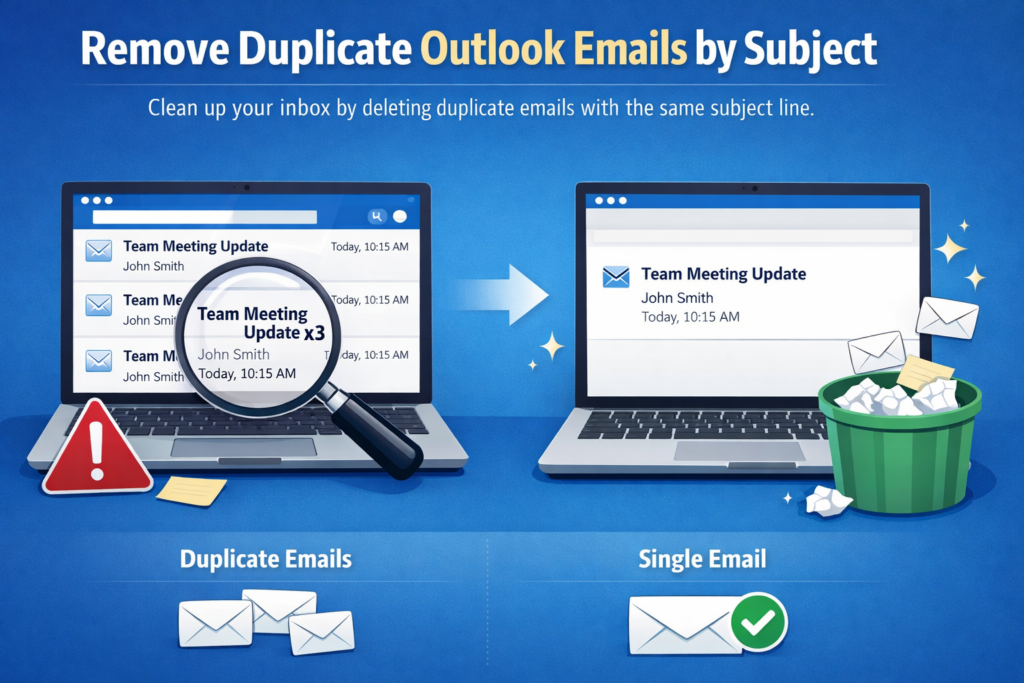
Duplicate emails can quickly turn a tidy mailbox into a cluttered workspace. When the same subject line appears again and again, it becomes harder to spot important messages, track conversations, and stay organized. In many Outlook inboxes, duplicates are not always exact copies. Sometimes they appear as repeated replies, forwarded threads, synced messages from multiple devices, or copies created by rules and filters. Microsoft’s own Outlook guidance emphasizes conversation grouping, clean-up tools, and inbox organization features because long threads often contain repeated information that can be removed safely.
Why Duplicate Emails Create Problems
Duplicate messages are more than a visual annoyance. They slow down email management, make search results noisier, and increase the chance of overlooking a message that actually matters. In a busy inbox, repeated subject lines can hide the latest reply in a conversation or make it difficult to tell which message is the most relevant version of a thread. Outlook’s conversation-based tools exist to reduce this kind of redundancy and help users focus on the newest useful message rather than every repeated copy.
Common Reasons Duplicate Emails Appear by Subject
Duplicate Outlook emails often come from a few predictable causes. One common reason is an email thread where the same subject line continues through multiple replies, making the inbox look repetitive even when the messages are part of one conversation. Another reason is synchronization across devices or accounts, especially when Outlook is connected to multiple mailboxes or services. Rules, forwarding, and repeated delivery paths can also create extra copies in the inbox. Outlook supports multiple account types and unified email management, which is useful, but it can also make duplicate handling more noticeable when settings are not aligned.
How to Remove Duplicate Outlook Emails by Subject
The easiest way to clean up subject-based duplicates is to first group or scan messages by subject, then remove the repeated copies one by one. In Outlook, conversation view can group related messages together, and Microsoft also provides a built-in Conversation Clean Up feature that removes redundant messages from a thread when later replies already contain the earlier text. You can run Clean Up for a single conversation, a folder, or even a folder with subfolders. Outlook sends cleaned-up items to Deleted Items by default.
If your goal is to remove duplicates from a specific subject line, use the subject grouping idea as a practical workflow: sort or group the inbox so identical subjects sit together, review the copies, and delete the unnecessary ones. For conversation-heavy mail, Microsoft recommends Conversation Clean Up because it is designed to remove messages that are already contained in later replies. That makes it one of the most efficient native options for reducing repeated content in Outlook.
Preventing Future Duplicate Emails
Prevention is just as important as cleanup. Outlook offers tools such as rules, Sweep, Archive, Move to, and conversation organization features that can help reduce clutter before it builds up. You can also use Ignore Conversation when a thread is no longer useful, which moves future messages in that conversation directly to Deleted Items. That is especially helpful for unwanted repeated mail that keeps returning under the same subject.
A few habits can also make a difference. Keep your mail settings consistent across devices, avoid unnecessary forwarding chains, and review mailbox rules regularly. If you use Outlook across desktop, web, and mobile, Microsoft’s current guidance shows that message organization can vary slightly by platform, so it helps to check that conversation view and cleanup settings are aligned everywhere you use the account.
Alternative Methods for Managing Duplicate Emails
If manual cleanup takes too long, you can explore Outlook’s built-in organizing tools first, since they are already available in Microsoft’s current Outlook experience. For recurring clutter, Conversation Clean Up and Ignore Conversation can save time. Outlook on the web also includes inbox organization tools like Sweep, Archive, and Move to, which can help reduce repeated mail patterns and keep the inbox manageable.
For users who deal with a large amount of repetitive mail, a structured inbox strategy works best: group messages by conversation, remove redundant items, archive what you need to keep, and use rules to reduce future repetition. Microsoft’s help content consistently frames Outlook as an app for organizing email so you can focus on the messages that matter most.
How to Remove Duplicate Emails by Subject Using SysVita OST to PST Converter
If your Outlook mailbox contains multiple emails with the same subject line, SysVita OST to PST Converter offers an efficient way to eliminate duplicate messages during the OST-to-PST conversion process. The software includes a duplicate removal feature that can compare emails using different attributes, including the Subject field, helping you create a clean and organized PST file.
Step 1: Install and Launch the Software
Download and install SysVita OST to PST Converter on your Windows computer. Launch the application after the installation is complete.
Step 2: Add the Outlook OST File
Click Browse or Add File to select the OST file you want to convert. The software scans the mailbox and displays all folders, including Inbox, Sent Items, Drafts, Contacts, Calendars, and more.
Step 3: Preview Mailbox Data
After scanning, preview your emails before exporting. This allows you to verify the mailbox content and select the folders or emails you want to include in the conversion.
Step 4: Enable Duplicate Email Removal
Open the Advanced Options or Duplicate Removal settings. Enable the option to remove duplicate emails and choose Subject as one of the comparison criteria. Depending on the software version, you may also combine Subject with other attributes such as Sender, Recipient, Date, or Message Body for more accurate duplicate detection.
Step 5: Choose PST as the Output Format
Select PST as the destination file format. You can also configure additional options, such as maintaining the original folder hierarchy, splitting large PST files, or applying date filters if required.
Step 6: Start the Conversion
Click the Convert or Export button to begin the conversion process. The software scans the mailbox, removes duplicate emails based on the selected subject criteria, and creates a new PST file while preserving email formatting, attachments, metadata, and folder structure.
Benefits of Removing Duplicate Emails by Subject
- Reduces mailbox size and improves Outlook performance.
- Eliminates repetitive emails sharing the same subject.
- Creates a cleaner and more organized PST file.
- Preserves email properties, attachments, and folder hierarchy.
- Saves time when searching and managing Outlook emails.
Conclusion
Duplicate Outlook emails by subject can make even a well-managed inbox feel out of control. The good news is that Outlook already includes practical ways to reduce repetition. Conversation Clean Up removes redundant messages, Ignore Conversation stops unwanted threads from returning to your inbox, and organizing tools like Sweep, Archive, and rules help prevent clutter from building up again. With the right cleanup routine, you can restore order, save time, and make your inbox far easier to manage.