
Introduction
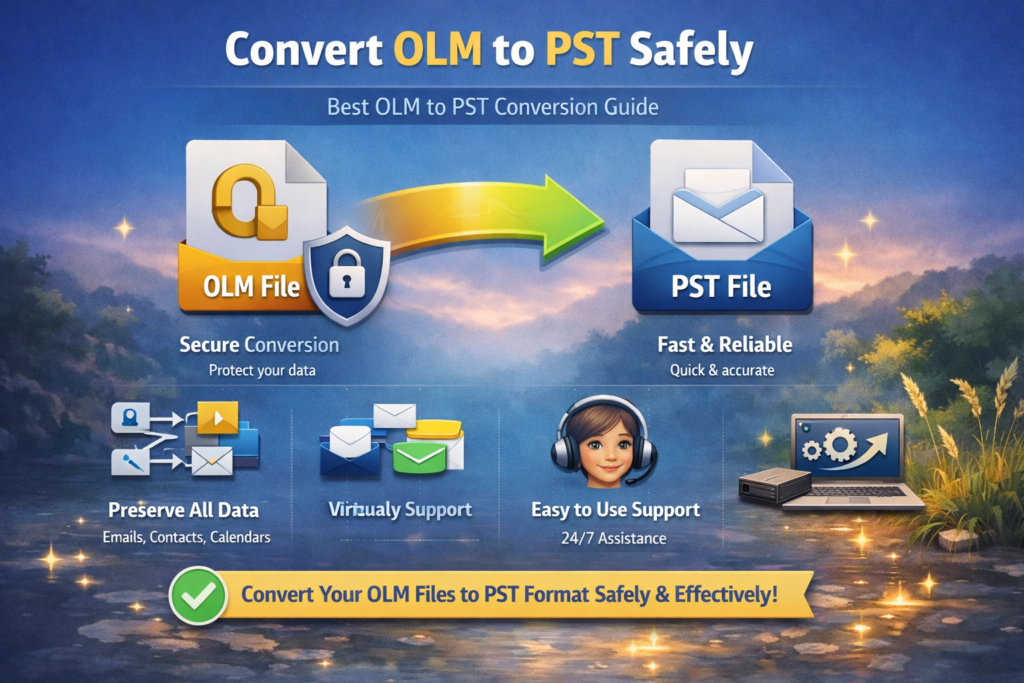
If you are moving from Outlook for Mac to Outlook for Windows, one of the most important tasks is to convert OLM to PST safely. The OLM file format stores mailbox data from Mac Outlook, while PST is the standard file format used by Microsoft Outlook on Windows. Because these file types are different, the conversion must be handled carefully to avoid data loss, missing attachments, or damaged folder structure.
A safe and accurate conversion process helps preserve emails, contacts, calendars, tasks, and other mailbox items. It also ensures that the final PST file opens properly in Outlook without errors. In this guide, you will learn the safest way to complete the migration and avoid common mistakes.
Why You Should Convert OLM to PST Safely
An OLM file may contain years of important communication and business records. If the conversion is done poorly, you may lose attachments, break folder hierarchy, or end up with incomplete mailbox data.
Choosing a safe method is important because it helps you:
- preserve mailbox structure
- protect attachments and metadata
- reduce the risk of corruption
- avoid incomplete exports
- maintain Outlook compatibility
Best Way to Convert OLM to PST Safely
The most dependable method is to use a professional OLM to PST converter that is designed specifically for Outlook migration. A dedicated tool can scan the OLM file, preview mailbox content, and export it into PST format without requiring manual conversion steps.
1. Install a Trusted OLM to PST Converter:
Start by choosing a reliable software tool that supports secure conversion. A good converter should be able to handle emails, contacts, calendars, notes, tasks, and attachments while preserving the original folder structure.
2. Add the OLM File
Launch the software and browse the OLM file from your system. Once loaded, the tool will scan the mailbox and display the available data.
3. Preview the Mailbox Data
Before conversion, review the mailbox preview carefully. This helps confirm that the file has been loaded correctly and that all folders and items are visible.
4. Choose PST as the Output Format
Select PST as the destination format. This ensures that the converted file will be compatible with Outlook on Windows.
5. Adjust Advanced Settings
If the converter includes advanced options, use them carefully. Features such as duplicate removal, date filters, and large PST split options can improve the final output and make the file easier to manage.
6. Start the Conversion Process
Once everything is ready, begin the conversion. A reliable tool will export the data securely and create a usable PST file with minimal risk.
Safety Tips Before Conversion
To keep the process safe, always create a backup copy of the original OLM file before starting. This gives you a secure fallback in case you need to repeat the process.
It is also smart to use offline software if the mailbox contains sensitive information. That helps protect privacy and reduces unnecessary exposure.
Avoid unreliable free tools that may not preserve all mailbox items properly. Some tools may convert only part of the file or fail to maintain the original structure.
After conversion, open the PST file in Outlook and verify that emails, attachments, and folders appear correctly.
Common Issues to Avoid
One common mistake is trying to convert a damaged or partially synced OLM file without checking it first. Another mistake is using a tool that cannot preserve formatting or folder structure.
Very large OLM files may also create issues if they are exported into one oversized PST file. In that case, splitting the output into smaller PST files can improve performance and stability.
Conclusion
If you need to convert OLM to PST safely, the best approach is to use a reliable converter, preview the mailbox, choose the correct output settings, and verify the final PST file after export. This process protects your data, preserves folder structure, and helps ensure a smooth migration from Mac Outlook to Windows Outlook.
A careful conversion today can save you from major problems later, especially when your mailbox contains valuable emails and attachments.
FAQ
What is the safest way to convert OLM to PST?
The safest way is to use a professional OLM to PST converter that supports preview, secure export, and folder preservation.
Can I convert OLM to PST manually?
Manual conversion is not usually recommended because it can lead to incomplete results or data loss. A dedicated converter is more reliable.
Will attachments be preserved during conversion?
A quality converter should preserve email attachments along with messages, contacts, and other mailbox items.
Why is PST better for Windows Outlook?
PST is the native Outlook data format for Windows, which makes it the best choice for importing and managing mailbox data on that platform.